
QuickOrderMultipleSku Container
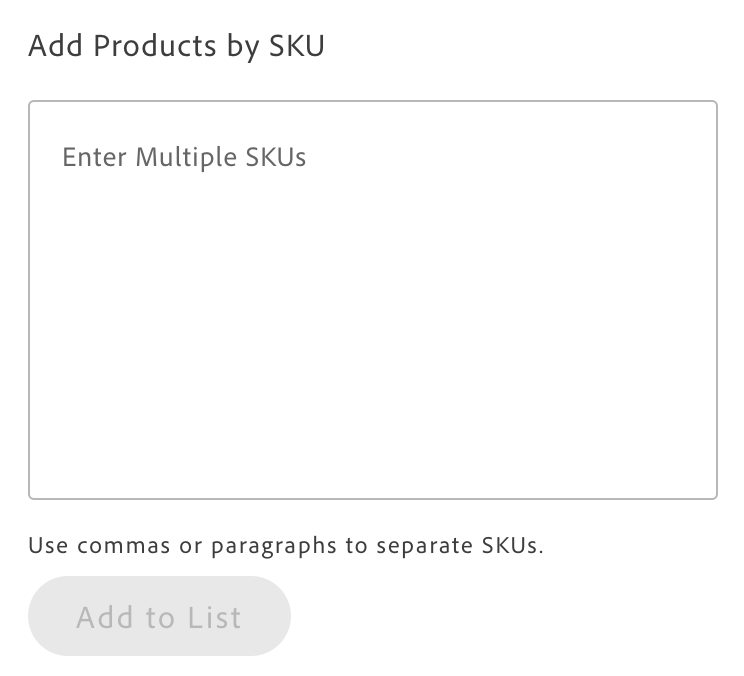
The QuickOrderMultipleSku container provides a text area for entering multiple SKUs in the drop-in. Users can paste or type SKU lists in space-separated, comma-separated, or line-separated format—convenient for B2B buyers who have SKUs from catalogs, previous orders, spreadsheets, or external procurement systems.
The container parses the input, removes duplicates, and aggregates quantities when the same SKU appears multiple times. Input processing is debounced (300ms) for good performance with large SKU lists. After entry, users click “Add to List” to add SKUs to the Quick Order list. When Quick Order is disabled, the container displays an overlay indicating that functionality is unavailable.
Configuration
Section titled “Configuration”| Parameter | Type | Req? | Description |
|---|---|---|---|
className | string | No | CSS class applied to the container root (for example, quick-order-multiple-sku). |
onChange | (payload: SubmitSkuValue) => void | No | Callback invoked when the SKU list in the textarea changes (debounced 300ms). Receives parsed and deduplicated SKUs with quantities: Array<{ sku: string; quantity: number }>. Use for analytics, validation, or mirroring to external state. |
slots | object | No | Slot for AddToListButton. Context: { handleAddToList: (values?: SubmitSkuValue) => void; loading: boolean; textAreaValue: string }. Use this to replace the default “Add to List” button with custom UI. If not customized, the default button emits quick-order/add-items with parsed SKUs when clicked. |
Behavior
Section titled “Behavior”- User enters SKUs in the text area (comma, space, or newline separated).
- User clicks “Add to List”.
- Container parses input, deduplicates SKUs and sums quantities for duplicates.
- Container emits
quick-order/add-itemswith payloadSubmitSkuValue(array of{ sku, quantity }). - QuickOrderItems receives the event, fetches product data via
getProductsData, and updates the list. - Text area can be cleared on successful submission (implementation-dependent).
Basic integration:
import QuickOrderMultipleSku from '@dropins/storefront-quick-order/containers/QuickOrderMultipleSku.js';import { render as quickOrderProvider } from '@dropins/storefront-quick-order/render.js';
quickOrderProvider.render(QuickOrderMultipleSku, { className: 'quick-order-multiple-sku',})(quickOrderMultipleSkuContainer);With onChange callback:
quickOrderProvider.render(QuickOrderMultipleSku, { className: 'quick-order-multiple-sku', onChange: (payload) => { console.log('Parsed TextArea content', payload); // Output: [{ sku: 'SKU123', quantity: 2 }, { sku: 'SKU456', quantity: 1 }] },})(quickOrderMultipleSkuContainer);With custom AddToListButton slot:
quickOrderProvider.render(QuickOrderMultipleSku, { className: 'quick-order-multiple-sku', slots: { AddToListButton: (ctx) => { const { handleAddToList, loading, textAreaValue } = ctx; const button = document.createElement('button'); button.className = 'add-to-list-button'; button.textContent = 'Custom add to list'; button.addEventListener('click', () => handleAddToList(textAreaValue)); ctx.replaceWith(button); }, },})(quickOrderMultipleSkuContainer);Events
Section titled “Events”- Emits:
quick-order/add-items(with parsed SKU/quantity array),quick-order/loading(during processing).
Admin panel
Section titled “Admin panel”No container-specific settings. Enable Quick Order in Adobe Commerce: Stores > Settings > Configuration > General > B2B Features > Enable Quick Order.
Dictionary
Section titled “Dictionary”Labels such as “Add Products by SKU”, “Use commas or paragraphs to separate SKUs.”, “Enter SKUs here…”, and “Add to List” come from the Quick Order dictionary. See Quick Order Dictionary and Dictionary customization.