
QuickOrderCsvUpload Container
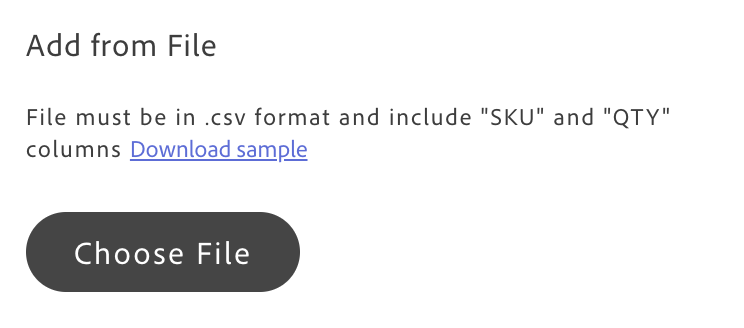
The QuickOrderCsvUpload container provides CSV file upload for bulk quick order in the drop-in. It is useful for repeat orders or bulk purchases where manual SKU entry would be inefficient. The file must include SKU and QTY columns (max 200 rows).
The container manages the full workflow: file selection, validation, and error handling. It verifies the uploaded file structure, validates required fields, and provides clear feedback when issues are detected. On success, it parses the content and emits quick-order/add-items. QuickOrderItems fetches product data and updates the list. When Quick Order is disabled, the container displays an overlay indicating that functionality is unavailable.
Configuration
Section titled “Configuration”| Parameter | Type | Req? | Description |
|---|---|---|---|
className | string | No | CSS class applied to the container root (for example, quick-order-csv-upload). |
routeSampleCSV | () => string | No | Returns the URL or path for the sample CSV download (for example, /path/to/sample.csv). If not provided, the container generates a default sample CSV (SKU,QTY followed by SKU123,1, SKU456,2, SKU789,3) and triggers a browser download. |
onFileUpload | (values: SubmitSkuValue) => void | No | Optional callback when a valid file is parsed; otherwise the container emits quick-order/add-items. |
CSV requirements
Section titled “CSV requirements”- Format: CSV with header row.
- Required columns: “SKU” and “QTY”.
- Max rows: 200 (excluding header).
- QTY: Must be a positive integer per row.
- SKU: Required for each row; invalid or empty rows produce validation errors.
Validation errors
Section titled “Validation errors”The container displays specific messages for: invalid file type, empty file, missing or extra columns, max rows exceeded, invalid quantity, SKU required, no valid data rows, and parse/read failures. See Quick Order Dictionary for CsvFileInput.uploadCSVErrors keys and Dictionary customization.
Behavior
Section titled “Behavior”- User selects a CSV file.
- Container validates format and content.
- On success: emits
quick-order/add-itemswith parsedSubmitSkuValue(or callsonFileUploadif provided). - QuickOrderItems receives the event and fetches product data, updating the list.
- User can download a sample CSV via “Download sample”. When
routeSampleCSVis provided, the container uses that URL; otherwise it generates a default sample and triggers a browser download.
Basic integration with a custom CSS class:
import QuickOrderCsvUpload from '@dropins/storefront-quick-order/containers/QuickOrderCsvUpload.js';import { render as quickOrderProvider } from '@dropins/storefront-quick-order/render.js';
quickOrderProvider.render(QuickOrderCsvUpload, { className: 'quick-order-csv-upload',})(quickOrderCsvUploadContainer);With onFileUpload callback (custom processing before adding to Quick Order):
quickOrderProvider.render(QuickOrderCsvUpload, { className: 'quick-order-csv-upload', onFileUpload: (parsedData) => { console.log('CSV file uploaded:', parsedData); // Custom processing before adding to Quick Order // If you omit this, the container emits quick-order/add-items automatically },})(quickOrderCsvUploadContainer);With custom sample CSV URL:
quickOrderProvider.render(QuickOrderCsvUpload, { className: 'quick-order-csv-upload', routeSampleCSV: () => '/quick-order/sample-csv',})(quickOrderCsvUploadContainer);Events
Section titled “Events”- Emits:
quick-order/add-items(with parsed SKU/quantity array from valid CSV),quick-order/loading(during validation/processing).
Admin panel
Section titled “Admin panel”No container-specific settings. Enable Quick Order in Adobe Commerce: Stores > Settings > Configuration > General > B2B Features > Enable Quick Order.