
Seller-Assisted Buying
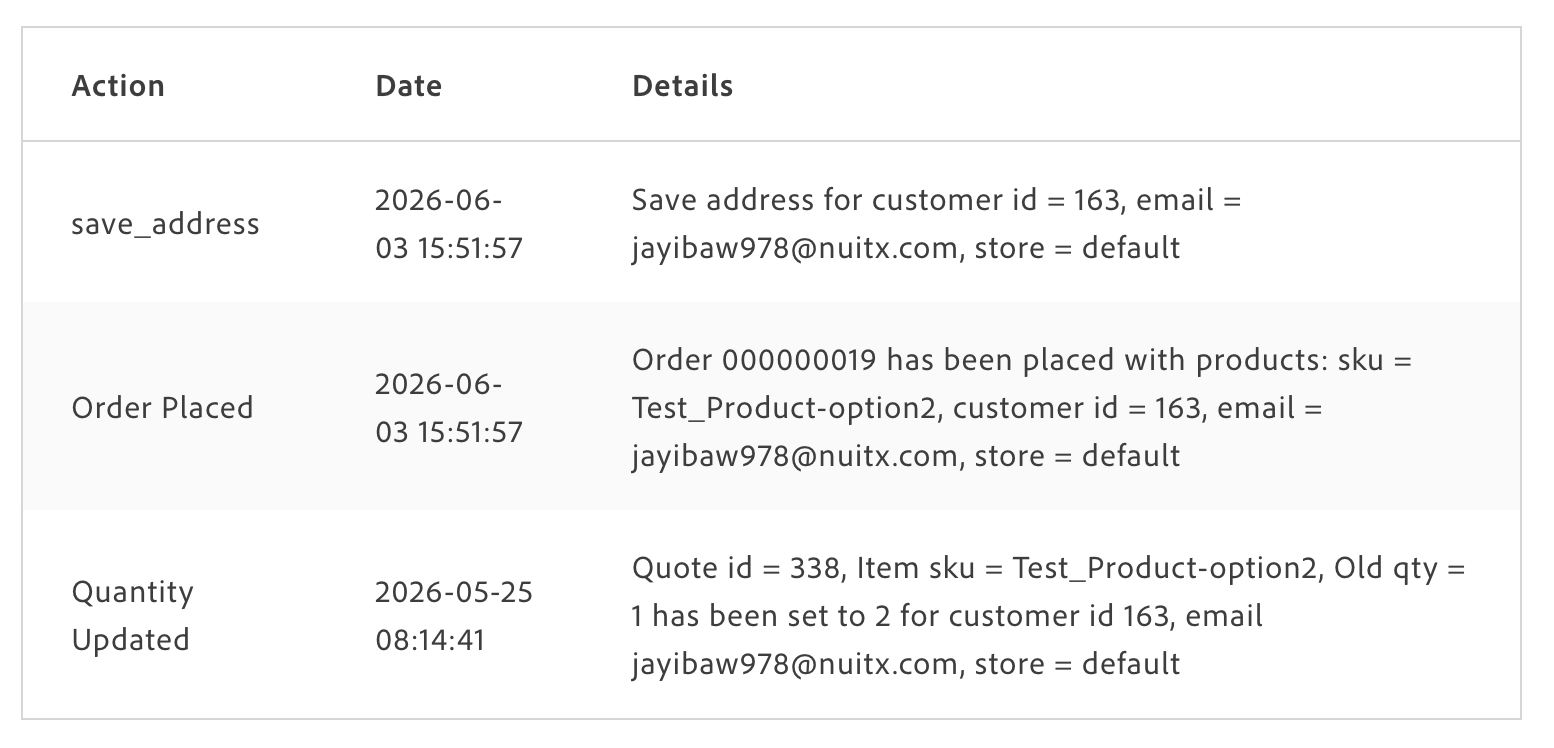
Seller-assisted buying lets a store administrator sign in as a customer and act on their behalf — browsing products, adding items to a cart, and placing orders. A banner at the top of every page tells the administrator they are browsing as that customer. Afterward, the customer can see every administrator action in their account activity log.
Two blocks support this feature on the customer account pages:
commerce-seller-assisted-buying-settings— lets the customer allow or revoke administrator access to their account.commerce-seller-assisted-buying-activity— shows the customer a history of administrator actions taken during assisted sessions.
Before using this feature, complete the prerequisite setup in the Login as Customer guide on Experience League: enable the feature in store configuration, grant the Admin user role permission, and ensure the customer has allowed remote shopping assistance either from their account or from the customer’s edit page in the Admin. This feature requires Storefront Compatibility Package v4.8.25+ for Adobe Commerce 2.4.8, or v4.9.0+ for Adobe Commerce 2.4.9. It is not yet available for Adobe Commerce 2.4.7.
What shoppers see
Section titled “What shoppers see”
The session banner appears at the top of every page while an administrator is browsing as a customer.

How To
Sign in as a customer
Section titled “Sign in as a customer”Once you have generated a one-time password (OTP) from the customer’s edit page in the Admin:
-
Go to your storefront sign-in page.
-
Enter the customer’s email address and paste the OTP as the password, then sign in.
The session banner appears at the top of every page. You are now browsing as the customer.
How To
End a session
Section titled “End a session”-
Click Close Session in the banner at the top of the page.
The session ends and you are redirected to the home page.
The customer can also revoke administrator access at any time from their account settings page using the commerce-seller-assisted-buying-settings block.
Block tables
Section titled “Block tables”Neither block requires any configuration rows. A header-only table is enough to place the block on a page.
Place commerce-seller-assisted-buying-settings on your customer account settings page:
| commerce-seller-assisted-buying-settings |
Place commerce-seller-assisted-buying-activity on your customer account activity page:
| commerce-seller-assisted-buying-activity |
Related resources
Section titled “Related resources”- Login as Customer — full Admin setup and OTP generation steps on Experience League