Translate storefront content
Translate storefront page documents with the Translate app in Document Authoring (DA.live), then review the translated content before publishing. Your development team handles the Commerce settings and storefront labels that need separate checks.
Prerequisites
Section titled “Prerequisites”- Access to your storefront project in Document Authoring and familiarity with the document workflow.
- Previewed or published source pages from the same site.
- A multistore setup with the folder structure, store views, currency, and headers configured by your development team.
Translation workflow
Section titled “Translation workflow”Collect the page URLs, create a translation project, and review the translated documents before transferring the Commerce checks.
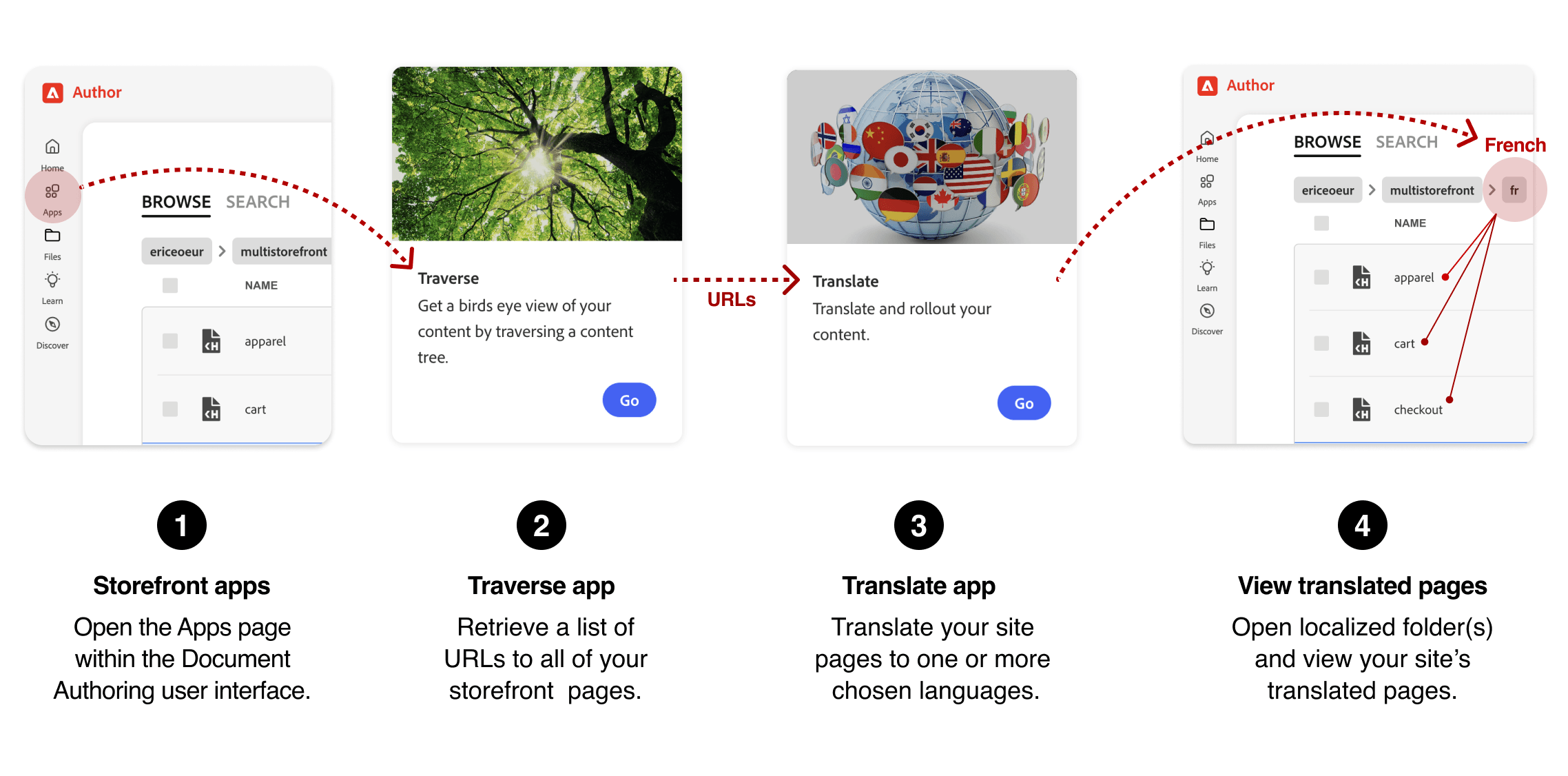
Translate English pages to French
Section titled “Translate English pages to French”This example translates English page content to French (fr). Replace the example organization and site path, /acme/storefront, with your project’s path, and use a descriptive translation project title instead of acme-storefront-fr.
Open your storefront apps
Section titled “Open your storefront apps”Start in the project that contains the pages to translate.
- Open your storefront project in Document Authoring .
- Select Apps from the left sidebar.
Collect the page URLs
Section titled “Collect the page URLs”The Traverse app lists the pages in your project so you can choose which ones to translate.
- Open the Traverse app.
- On the Crawl Tree page, enter your organization and site path, such as
/acme/storefront, including the leading slash (/). - Select Crawl to list the pages.
- Select Copy list to copy the URLs to your clipboard.
- Return to the Apps page.
Validate the source pages
Section titled “Validate the source pages”Create a translation project from the copied URLs. For the full workflow and current controls, see Translation projects .
-
Open the Translate app and start a new translation project.
-
On the Setup basics tab, enter a Title, such as
acme-storefront-fr. -
Paste the copied URLs into the URLs field.
-
Select Validate sources.
-
Review the URL statuses and deselect any pages that should not be translated.
-
Select Confirm options.
Translate the pages
Section titled “Translate the pages”On Confirm options, check the environment and conflict settings with your project administrator, especially if French content already exists. Projects with source sync or regional rollout include extra stages described in Translation projects .
- Select Translate for French (
fr) in the language options. - Select Start project.
- If Sync sources appears, sync the pages into your site’s source folder or skip that stage before continuing.
- On Translate sources, select Translate all.
- Select Get status to check translation progress.
- If Rollout locales appears, complete the rollout to the selected locales.
- Select Complete project after translation and any configured rollout are complete.
Review the translated documents
Section titled “Review the translated documents”When translation is complete, the French documents are available in the fr language folder.
- Return to your storefront’s content root.
- Open the
frfolder. - Open a document, such as
index, and review the translated text and links.
Check the result
Section titled “Check the result”Review representative pages in a storefront preview, including their text and links. Before publishing, ask your development team to use Commerce localization tasks to prepare the storefront:
- Translate drop-in placeholder files for storefront labels and messages.
- Confirm that the content folders match the intended store views and multistore configuration.
After publishing, ask your development team to test product data, pricing, currency, and the store switcher for the target locale.
Troubleshooting
Section titled “Troubleshooting”For translation progress or project issues, see Translation projects . For untranslated storefront labels, incorrect product data, or currency issues, use Troubleshooting Commerce-specific issues.
More help on this topic
Section titled “More help on this topic”- Translation and localization : Choose a language and region strategy for your content.
- Store views : Understand Commerce store view configuration.
- Configuration scope : Understand how Commerce settings apply to store views.