
Add breadcrumbs for PLP and PDP
In this how-to, you’ll create a commerce-breadcrumbs block that helps shoppers navigate your catalog. On a product listing page (PLP), your breadcrumb block shows your catalog hierarchy. On a product details page (PDP), it reflects the path the shopper took. You’ll use the Breadcrumbs component from the SDK.
What you’ll edit or create
Section titled “What you’ll edit or create”- Create the breadcrumbs block —
blocks/commerce-breadcrumbs/commerce-breadcrumbs.js - Create the breadcrumbs styles —
blocks/commerce-breadcrumbs/commerce-breadcrumbs.css - Create the authored
<ol>on the PLP and PDP
What you’ll build
Section titled “What you’ll build”By the end of this how-to, you’ll have:
- A
commerce-breadcrumbsblock inblocks/commerce-breadcrumbs/commerce-breadcrumbs.jsandblocks/commerce-breadcrumbs/commerce-breadcrumbs.cssthat renders authored breadcrumbs on PLPs and PDPs. - An authored
<ol>on each page type. The block stores the PLP trail insessionStorageand restores it on the matching PDP.
Prerequisites
Section titled “Prerequisites”Before you begin, make sure you have:
- A working Commerce storefront on Edge Delivery Services
- A product listing page (PLP) powered by the Product Discovery drop-in
- A product details page (PDP) powered by the Product Details drop-in
- Familiarity with customizing blocks in your code repository
The PLP-to-PDP trail
Section titled “The PLP-to-PDP trail”Shoppers reach a PDP via categories, but the PDP is usually authored with a fixed breadcrumb. commerce-breadcrumbs.js preserves the navigation path in sessionStorage and restores it on the matching PDP.
| What the shopper does | What the block should do |
|---|---|
Browses the Apparel category, sees Home / Apparel | Nothing — it only acts on product-link clicks and PDP loads |
| Clicks through to the Adobe pattern hoodie product | Write { path, trail } to sessionStorage, keyed to /products/adobe-pattern-hoodie/ADB127 |
Lands on the PDP, authored as Home / Placeholder | Check whether the stored path matches the URL. It matches, so swap in the stored trail and, once the drop-in loads catalog data, replace the leaf — the shopper now sees Home / Apparel / Adobe pattern hoodie |
The stored entry:
{ "path": "/products/adobe-pattern-hoodie/ADB127", "trail": [ { "label": "Home", "url": "/" }, { "label": "Apparel", "url": "/apparel" } ]}If the path doesn’t match a different product or a bookmarked PDP, the block leaves the authored breadcrumb alone. This approach records the path the shopper took and uses the authored breadcrumb in all other cases.
Step 1: Create the block files
Section titled “Step 1: Create the block files”Create a commerce-breadcrumbs directory in the blocks/ directory of your storefront project. Add two empty files: commerce-breadcrumbs.js and commerce-breadcrumbs.css. Add the code examples to those files. The next section explains the JavaScript.
import { Breadcrumbs, provider as UI } from '@dropins/tools/components.js';import { events } from '@dropins/tools/event-bus.js';import { h } from '@dropins/tools/preact.js';
import { rootLink } from '../../scripts/commerce.js';
const SESSION_KEY = 'commerce.breadcrumbs';
/** * Parses the authored `<ol>` / `<ul>` into a flat list of `{ label, url }`. * `url` is the `<a>` pathname when present, otherwise `null`. * * Position determines the leaf: the last `<li>` is always rendered as the * current page (plain text). The author provides every crumb (including * `Home`). */function parseCrumbs(block) { const list = block.querySelector('ol, ul'); if (!list) return []; return [...list.querySelectorAll(':scope > li')].map((li) => { const anchor = li.querySelector('a'); return { label: (anchor || li).textContent.trim(), url: anchor ? new URL(anchor.href).pathname : null, }; });}
export default function decorate(block) { const crumbs = parseCrumbs(block); block.innerHTML = ''; if (crumbs.length === 0) return;
const currentPath = window.location.pathname; const leaf = crumbs[crumbs.length - 1]; let ancestors = crumbs.slice(0, -1);
// Session override: when arriving from a PLP, use the propagated trail // instead of whatever the author put in the HTML. const raw = sessionStorage.getItem(SESSION_KEY); if (raw) { try { const session = JSON.parse(raw); if (session.path === currentPath) ancestors = session.trail; } catch (error) { sessionStorage.removeItem(SESSION_KEY); // Log and recover instead of breaking the page. console.error(`Malformed ${SESSION_KEY} in sessionStorage: ${error.message}`); } }
const renderCrumbs = (leafLabel) => UI.render(Breadcrumbs, { categories: [ ...ancestors.map((item) => item.url ? h('a', { href: rootLink(item.url) }, item.label) : h('span', null, item.label) ), h('span', null, leafLabel), ], })(block);
// Update the leaf once the drop-in provides the catalog product name. renderCrumbs(leaf.label); events.on( 'pdp/data', (product) => { if (product?.name) renderCrumbs(product.name); }, { eager: true } );
// Propagate the full breadcrumb (ancestors + current page) on product link // clicks so the destination PDP can render the user's actual path. const propagatedTrail = [...ancestors, { label: leaf.label, url: currentPath }];
document.querySelector('main .product-list-page')?.addEventListener('click', (event) => { const anchor = event.target.closest('a'); if (!anchor) return; const targetPath = new URL(anchor.href).pathname; sessionStorage.setItem( SESSION_KEY, JSON.stringify({ path: targetPath, trail: propagatedTrail }) ); });}.commerce-breadcrumbs { padding: var(--spacing-small) 0;}How the code works
Section titled “How the code works”SESSION_KEY(line 7) — Both the read and the write paths share this one constant, so there’s only onesessionStorageentry to keep track of.parseCrumbs()(line 17) — Selects:scope > lirather than every<li>in the block, so nested lists (for example, inside a link’s icon markup) don’t get parsed as extra crumbs.decorate()(line 29) — Exits immediately whenparseCrumbs()returns nothing, so an empty block renders nothing instead of throwing an error.- Session override (line 38 onward) — This logic is the
sessionStoragecheck from The PLP-to-PDP trail: it reads the stored entry and, ifsession.pathmatcheswindow.location.pathname, replacesancestorswith the stored trail. The entry is never cleared after use, so revisiting the same PDP directly later in the same session can still show the propagated trail. renderCrumbs()(line 52) — Renders the breadcrumb once with the authored leaf label, then again whenever thepdp/dataevent fires with the product’s catalog name. This function is what lets the current page breadcrumb update after the block first renders.- The click listener (line 71) — Writes the
sessionStorageentry for clicks insidemain .product-list-page, matching the caution above about non-product links in that subtree.
Step 2: Add breadcrumbs to a PLP and a PDP
Section titled “Step 2: Add breadcrumbs to a PLP and a PDP”Edge Delivery Services renders block tables in the order they appear, so place the breadcrumb before the page’s main block: the product-list-page table on the PLP or the product-details table on the PDP. In DA.live, insert a new table before that block table.
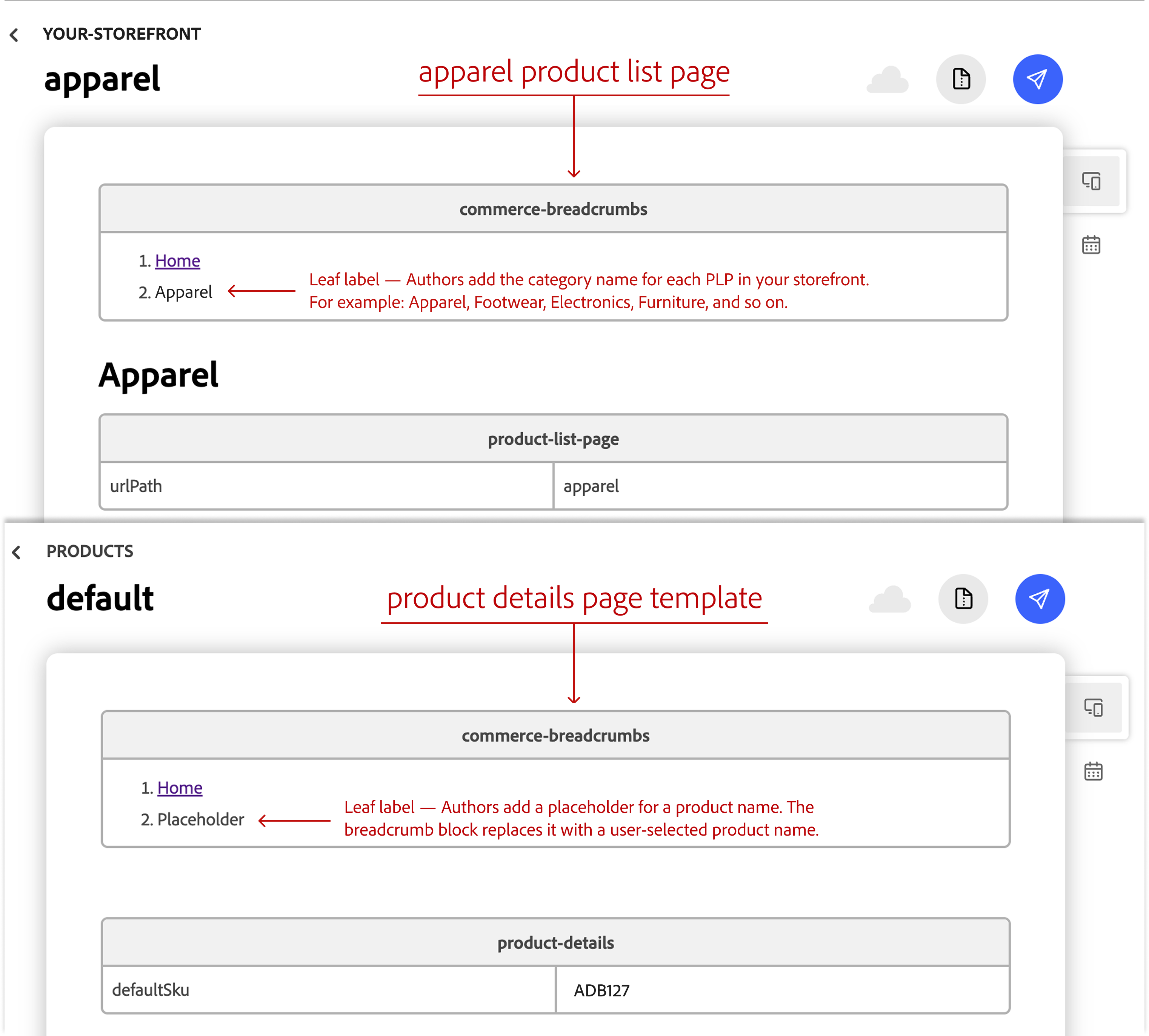
Set the table’s first row to commerce-breadcrumbs. This block name row tells Edge Delivery Services which block to render. In the next row, add a numbered or bulleted list with one item per breadcrumb. Link each breadcrumb page except the last, which represents the current page and remains plain text.
DA.live and Edge Delivery Services generate this HTML from what you author. It’s shown here so you can confirm it matches what the Step 1 code expects. For example, the published HTML for /apparel looks like this:
<div class="commerce-breadcrumbs"> <div> <div> <ol> <li><a href="/">Home</a></li> <li>Apparel</li> </ol> </div> </div></div>The PLP breadcrumb renders as:
Home / ApparelAuthor the PDP the same way, but since /products/default is a shared template rendered for every product, use a generic placeholder for the leaf <li> instead of a real product name.
On a direct visit, it initially renders as:
Home / PlaceholderAfter the Product Details drop-in loads catalog data for the selected product, such as the Adobe pattern hoodie at /products/adobe-pattern-hoodie/ADB127, the commerce-breadcrumbs block replaces the leaf with the product name:
Home / Adobe pattern hoodieStep 3: Deploy and verify
Section titled “Step 3: Deploy and verify”Commit the blocks/commerce-breadcrumbs/ directory and push the changes to your branch. After Code Sync deploys the update to your preview URL, verify the following scenarios:
- Direct PLP load — Open
/apparel(or any PLP with an authored breadcrumb). Confirm the rendered breadcrumb matches the authored<ol>. - Direct PDP load — Open a product URL directly (for example, in an incognito window). Confirm the rendered breadcrumb matches the authored trail, with the product as the final breadcrumb.
- PLP-to-PDP navigation — On the PLP, open DevTools > Application > Session Storage, then click a product card. Confirm
commerce.breadcrumbscontains an entry for the destination pathname and the current breadcrumb trail. On the PDP, confirm the ancestor breadcrumbs match the PLP path (see Troubleshooting) and the current page breadcrumb displays the product’s catalog name. - PLP-to-PDP, different PDP — From the same PLP, click product A. Then open product B directly in a new tab. Confirm product B displays the authored breadcrumb trail because
sessionStorageis scoped to the tab and the stored entry applies only to product A’s pathname. - Malformed session data — On a PDP, open the console and run
sessionStorage.setItem('commerce.breadcrumbs', '{bad json}'); location.reload();. Confirm the authored ancestor breadcrumbs render (see The session storage value is malformed) and the console logs an error instead of breaking the page.
PDP breadcrumbs at scale
Section titled “PDP breadcrumbs at scale”Manual authoring is suitable for a demo or a small number of pages, but it is not practical for a product-rich catalog. Someone has to add the correct ancestor <ol> to every product document and keep it synchronized as categories change. For storefronts with deep category hierarchies, generate the PDP breadcrumb in the experience layer instead of hand-authoring it.
If your storefront uses AEM Commerce Prerender to generate product page HTML, you still need a source for the PDP ancestor trail. The default product query does not return a product’s category hierarchy from Catalog Service, so it cannot build PDP breadcrumbs from product data alone. PLP rendering is different: the prerender can use category data to build the category ancestor trail.
A product’s assigned categories may not match the breadcrumb path a shopper took. For example, a product assigned to Comfort can appear in a breadcrumb path of Shoes / Comfort. The assigned category alone does not provide the full path or the URLs for each crumb. The experience layer that assembles the page must provide that information. This how-to does not define an automated PDP breadcrumb solution. It focuses on manual breadcrumb management in DA.live and a PLP-to-PDP session approach that preserves the shopper’s category context.
Troubleshooting
Section titled “Troubleshooting”The breadcrumb is empty
Section titled “The breadcrumb is empty”Make sure the commerce-breadcrumbs block contains an <ol> or <ul> with at least one <li>. An empty list renders nothing.
The PDP shows the wrong trail
Section titled “The PDP shows the wrong trail”Check commerce.breadcrumbs in DevTools > Application > Session Storage. Its path must match window.location.pathname exactly, including any trailing slash or base path.
The session storage value is malformed
Section titled “The session storage value is malformed”If the session key contains invalid JSON, the block logs a console error, removes the bad value, and falls back to the authored ancestor breadcrumbs so the page still renders correctly. In this example, commerce-breadcrumbs.js is the only code that writes to commerce.breadcrumbs. Check your storefront for other code that might overwrite the key.
Extra links appear in session storage
Section titled “Extra links appear in session storage”This happens because the click listener in commerce-breadcrumbs.js fires on every <a> inside main .product-list-page, including non-product links in that subtree (see The PLP-to-PDP trail). This does not affect the breadcrumb: only pages that host the block read the entry, and the path check keeps a stored trail from applying to the wrong page. To avoid storing non-product links, narrow the listener to the product-link selector used by your storefront.