Enrichment
This topic introduces you to the concept of enriching product pages in your storefront. You will learn how to add content blocks above or below a commerce block (or any other block).
Key concepts
Section titled “Key concepts”Enrichment
Section titled “Enrichment”Enrichment means to add content that strengthens the user experience of the drop-in on the webpage. When viewing a product’s details (via the product-details drop-in), the user experiences all the core features of the drop-in. However, all the other extra content on the page, like product recommendations, must be added in one of the ways described in this topic.
Content blocks
Section titled “Content blocks”Content blocks are tables in a document that contain text, images, or other media. They are used to structure and organize content on a webpage. See Block collection for more information.
Commerce blocks
Section titled “Commerce blocks”Commerce blocks are Edge Delivery Service blocks that contain drop-in components. Commerce blocks are used to add drop-in components like the product-details block that features a specific product.
Enrichment blocks
Section titled “Enrichment blocks”Enrichment blocks dynamically display content above or below commerce blocks based on conditions such as product SKUs and category numbers. For category enrichment, the enrichment block reads the category URL path from the Product List Page block configuration.
Content positioning
Section titled “Content positioning”Content positioning is the placement of content and enrichment blocks on a webpage. It includes the arrangement of content blocks above or below a commerce blocks. Positioning content inside a drop-in component is also possible using the slot API functions. The webpage structure is within a Word or Google docs file. This file includes tables that define content blocks, commerce blocks, and other HTML elements.
Prerequisites
Section titled “Prerequisites”Before you can use enrichment functionality, you must complete the following setup steps:
Configure query.yaml to generate enrichment.json
Section titled “Configure query.yaml to generate enrichment.json”The enrichment.json file is automatically generated by the system when you configure your query.yaml file properly. You do not need to manually create this file.
Configure your helix-query.yaml or the query.yaml pushed to your Helix site config to include the enrichment index configuration.
version: 1indices:enrichment: target: /enrichment/enrichment.json include: - '**/enrichment/**' properties: title: select: head > meta[property="og:title"] value: | attribute(el, 'content') products: select: head > meta[name="enrichment-products"] values: | match(attribute(el, 'content'), '([^,]+)') categories: select: head > meta[name="enrichment-categories"] values: | match(attribute(el, 'content'), '([^,]+)') positions: select: head > meta[name="enrichment-positions"] values: | match(attribute(el, 'content'), '([^,]+)')Choose the correct location for your query.yaml
Section titled “Choose the correct location for your query.yaml”You have two options for where to place your query.yaml configuration:
Option 1: Site-specific configuration (Recommended for Helix 5)
- Configure at:
https://admin.hlx.page/config/[ORG]/sites/[SITE]/content/query.yaml - This is the recommended approach for new Helix 5 projects
- Each site has its own independent configuration to prevent conflicts between different sites
Option 2: GitHub-based configuration
- Place as
helix-query.yamlin your GitHub repository - This configuration will be shared among all sites using the same code reference
- Suitable for multi-site deployments with shared configuration
Verify enrichment setup
Section titled “Verify enrichment setup”After completing the above steps, verify that your enrichment setup is working by:
- Test enrichment functionality: Create enrichment content and test it on a product page
- Check browser console: Look for any JavaScript errors that might prevent enrichment from loading
Enrichment metadata structure
Section titled “Enrichment metadata structure”The enrichment system uses specific metadata tags in your enrichment content documents to determine when and where content should appear. Based on the query.yaml configuration, the following metadata properties are supported:
Example enrichment content metadata
Section titled “Example enrichment content metadata”When creating enrichment content, add these metadata tags to the document’s frontmatter:
---title: "Special Watch Promotion"enrichment-products: "WATCH-001, WATCH-002"enrichment-categories: "watches, accessories"enrichment-positions: "below"---Add content blocks
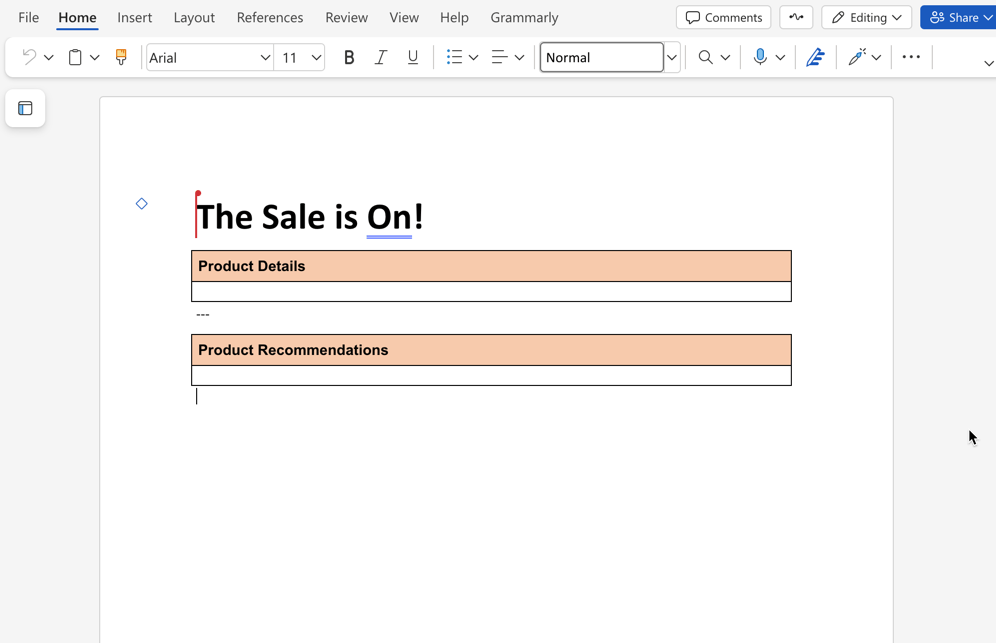
Section titled “Add content blocks”The following steps show you how to enrich a commerce block by placing content blocks above or below it. The following example shows the default product-details document with a simple product recommendation block below it.
Open a commerce block document
Section titled “Open a commerce block document”Open the document that contains the commerce block you want to enrich. In the boilerplate starter content, open the products/default to see an example of a product recommendation block below the product details block.
Add normal content or content blocks
Section titled “Add normal content or content blocks”Add a normal headings, text, images or content blocks above or below the commerce block in the document. You can copy content blocks (tables) from the AEM Sidekick Library and paste them into the document.
Preview and publish changes
Section titled “Preview and publish changes”Use AEM Sidekick to preview and publish the changes to see the content above or below the commerce block.
Universal Editor compatibility
Section titled “Universal Editor compatibility”Universal Editor preserves enrichment block wrappers so they remain visible and authorable. You can edit enrichment block properties directly in the visual editor. On the published storefront, the wrapper loads enrichment content and then removes itself, leaving the page layout unchanged.
Add enrichment blocks
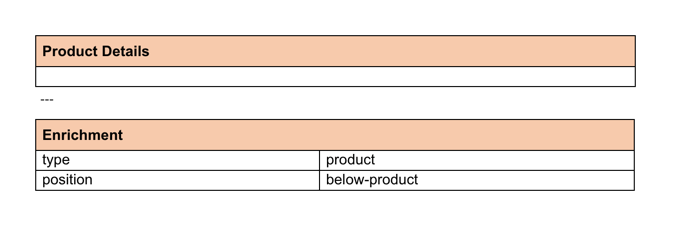
Section titled “Add enrichment blocks”Enrichment blocks are used to add content above or below commerce blocks based on product and category numbers. The following steps show you how to enrich a commerce block by placing an enrichment block above or below it.
Create enrichment content
Section titled “Create enrichment content”In your content folder, add a new document to the enrichment folder. You can duplicate the product-banner document and rename it. Then add the content you want to display below the commerce block.
Change the metadata values
Section titled “Change the metadata values”Change the metadata values for the enrichment content to match the product SKUs or product categories for which you want your content to appear.
Preview and publish changes
Section titled “Preview and publish changes”Use AEM Sidekick to preview and publish the changes to see the content above or below the commerce block.
Troubleshooting
Section titled “Troubleshooting”If enrichment functionality is not working as expected, follow these troubleshooting steps:
Common issues and solutions
Section titled “Common issues and solutions”Enrichments not appearing on product pages
- Check browser console: Look for JavaScript errors that might prevent enrichment from loading
- Verify
query.yamlconfiguration: Ensure the enrichment target is properly configured in yourquery.yamlfile - Check content structure: Ensure enrichment content follows the correct document structure
- Content not published: Verify that enrichment content documents are properly published
Enrichment content not displaying
- Metadata mismatch: Ensure the
enrichment-productsandenrichment-categoriesmetadata values match your actual product SKUs and category IDs - Missing metadata: Verify that enrichment content documents include the required metadata tags (
enrichment-products,enrichment-categories,enrichment-positions) - Content not published: Use AEM Sidekick to preview and publish enrichment content
- Document structure: Verify that enrichment content follows the correct table structure
- Query.yaml configuration: Ensure the enrichment index is properly configured with the correct
includepattern ('**/enrichment/**')
Debugging steps
Section titled “Debugging steps”- Check browser console: Open developer tools and look for JavaScript errors
- Verify query.yaml configuration: Check your site’s query.yaml configuration at
https://admin.hlx.page/config/[your-site]/content/query.yaml - Confirm enrichment target: Ensure the enrichment target is properly configured (lines 34-54 in the boilerplate example)
- Test with boilerplate: Compare your setup with the AEM boilerplate repository
Getting help
Section titled “Getting help”If you continue to experience issues:
- Check the AEM boilerplate repository for reference implementations
- Review the default-query.yaml configuration
- Contact Adobe Commerce support with specific error messages from your browser console
Summary
Section titled “Summary”In this topic, you learned how to enrich drop-in components by adding Edge Delivery Services content and enrichment blocks above and below commerce blocks (powered by drop-in components). You also learned about the prerequisite setup steps and troubleshooting common issues.